Data logger
Overview
PROCON-CONNECT has an integrated data logger. This can be used to record process variables and store them in a database.
The following databases are available:
SQLite file based
SQLite in memory
InfluxDB v2
Metadata of the logged tags is automatically saved in the selected target database. This enables the data to be evaluated on the basis of the database. Further API accesses to PROCON-Connect are therefore often not necessary. Details are described in the chapter on the respective database on this help page.
Database connections
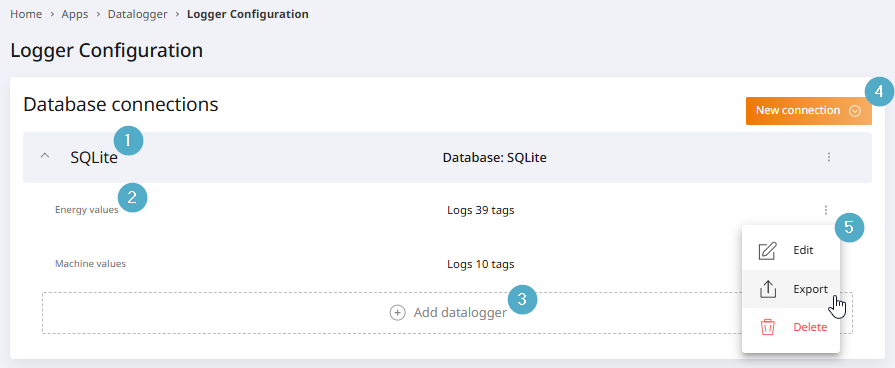
The overview of the database connections is structured as follows:
Database connections: Existing database connections with name and database type.
Data loggers: Connections can be expanded to display the data loggers for the connection.
Add data logger: Add a new data logger to the database connection.
New connection: Add a new database connection. Connections to a local SQLite or an InfluxDB are possible.
Three-point menu: Data loggers can be edited, exported or deleted via the menu at the end of the line.
Choosing the right database type
PROCON-Connect supports three different database systems for storing time series data recorded by data loggers:
SQLite file based
SQLite in memory
InfluxDB v2
Each of these options has specific characteristics as well as advantages and disadvantages. Choosing the right database depends largely on the intended use, the system environment and the performance requirements. In this chapter you will find a decision-making aid for selecting the right database system.
SQLite file based
SQLite is a lightweight, serverless SQL database that stores data in a single file on the file system.
Advantages:
No installation or configuration of an external database server necessary.
Low system requirements.
Easy to save and transfer (a single .db file).
Ideal for embedded systems or edge devices.
Disadvantages:
Performance quickly limited with larger data volumes.
No parallel access.
No native support for time series analysis.
Typical applications:
Local data acquisition on a Raspberry Pi or IPC.
Applications with limited memory requirements.
SQLite in memory
With the in-memory version of SQLite, all data is stored exclusively in the working memory. There is no persistent storage.
Advantages:
Very high read and write speed.
Minimal latency, as files do not need to be accessed.
Ideal for temporary analyses with edgeML.
Disadvantages:
Data is lost when the software is restarted.
Limited memory capacity depending on the available RAM.
Typical applications:
Temporary data analysis or aggregation.
Short-term temporary storage in the runtime environment.
Provide data at short notice for other services such as edgeML.
InfluxDB v2
InfluxDB is a specialized time series database optimized for high write load and efficient queries across timelines. Version 2 offers a modern API, integrated authentication and a powerful query language (Flux).
Advantages:
High performance with large amounts of data.
Optimized for time series analyses (e.g. aggregations, windowing, downsampling).
Web interface and API access.
Scalability for productive systems.
Disadvantages:
External database server required.
Higher resource consumption.
Initial setup and configuration required.
Typical applications:
Central data collection and long-term storage.
Industrial environments with high measurement frequency.
Integration into existing monitoring or visualization solutions (e.g. Grafana).
Decision support
The following table provides a compact overview of the three options:
Criteria |
SQLite file based |
SQLite in memory |
InfluxDB v2 |
|---|---|---|---|
Persistence |
Yes |
No |
Yes |
Setup effort |
No effort |
No effort |
Medium to high |
Performance |
Medium |
High |
High |
Parallel access |
No |
No |
Yes |
Suitability for time series |
Restricted |
Restricted |
Very good |
Typical use |
Local |
Temporary |
Networked systems |
SQLite file based
File-based SQLite databases can be created under any path. The path specification is preset with a default value, but can be changed. The info field shows the full path to the new database. The path is made up of the path entry and the database name. This combination must be unique.
For reasons of compatibility with different operating systems, the database name may only contain the following characters:
Capital letters: A-Z
Lower case letters: a-z
Digits: 0-9
Allowed special characters: -_
The path can also refer to a USB device or an SD card. In a container-based environment, please note the following:
The storage medium must be mounted and recognized on the host system.
The container in which PROCON-Connect is running must include the mount path of the storage medium.
The container in which PROCON-Connect runs requires appropriate access rights to the storage medium.
Access to the stored path is being tested:
Manual: By clicking on the
Check pathbutton,Automatic: When attempting to save the configuration.
Metadata
Metadata is also stored in the SQLite database for each logged tag to make it easier to analyze the data via the database itself.
The metadata for SQLite data loggers is stored in the tagDefinitions table. The table contains the following fields:
id: Technical key that can also uniquely address individual array fields.uuid: Technical key that uniquely identifies a tag down to array level.name: Name of the tag.arraySize: Size of the array. For simple tags, the value is 1.type: Data type of the tag. Numeric, Boolean or string.ioType: Communication behavior of the tag. Input, Output or BiDir.designerTagId: TagId in the PROCON-WEB Designer. Only available for HMI tags.local: Flag for local tags.system: Flag for system tags. 1 for system tags, 0 for project-specific tags.driver: Name of the driver via which the tag is connected.checksum: Check sum over the metadata.
Time series data
The logged time series data is stored in the loggerValues table. The table contains the following fields:
id: Technical key that can also uniquely address individual array fields.dateTime: Timestamp of the value as UNIX timestamp.logValue: Field for Booleans.numValue: Field for numerical values.stringValue: Field for textual values.
Shredding the database
After these events occur, the affected database is automatically resized so that it requires less storage space:
Deleting a data logger.
Reducing the data logger’s deletion interval.
SQLite in memory
In-memory SQLite databases are stored exclusively in the working memory. The data is not persisted permanently. Only the unique database name needs to be specified for the configuration.
For reasons of compatibility with different operating systems, the database name may only contain the following characters:
Capital letters: A-Z
Lower case letters: a-z
Digits: 0-9
Allowed special characters: -_
Emptying the database
The database is only stored in the working memory. This means that the database, including all data, is discarded during certain actions. The next time the Datalogger Service is started, the database is rebuilt from scratch.
Actions that lead to the discarding of In-Memory SQLite databases are:
Project change in PROCON-Connect.
Stop/restart the data logger service.
Stop/restart PROCON-Connect.
Shutdown/restart the device.
Other actions that end or restart the data logger service.
Metadata
Metadata is also stored in the SQLite database for each logged tag to make it easier to analyze the data via the database itself.
The metadata for SQLite data loggers is stored in the tagDefinitions table. The table contains the following fields:
id: Technical key that can also uniquely address individual array fields.uuid: Technical key that uniquely identifies a tag down to array level.name: Name of the tag.arraySize: Size of the array. For simple tags, the value is 1.type: Data type of the tag. Numeric, Boolean or string.ioType: Communication behavior of the tag. Input, Output or BiDir.designerTagId: TagId in the PROCON-WEB Designer. Only available for HMI tags.local: Flag for local tags.system: Flag for system tags. 1 for system tags, 0 for project-specific tags.driver: Name of the driver via which the tag is connected.checksum: Check sum over the metadata.
Time series data
The logged time series data is stored in the loggerValues table. The table contains the following fields:
id: Technical key that can also uniquely address individual array fields.dateTime: Timestamp of the value as UNIX timestamp.logValue: Field for Booleans.numValue: Field for numerical values.stringValue: Field for textual values.
InfluxDB
This target type is used to establish a connection to an InfluxDB v2. The database itself and the bucket must already exist. Other main versions of InfluxDB are not supported due to the strongly differing data model between the versions.
The event log provides information on whether a connection attempt was successful and indicates possible sources of error.
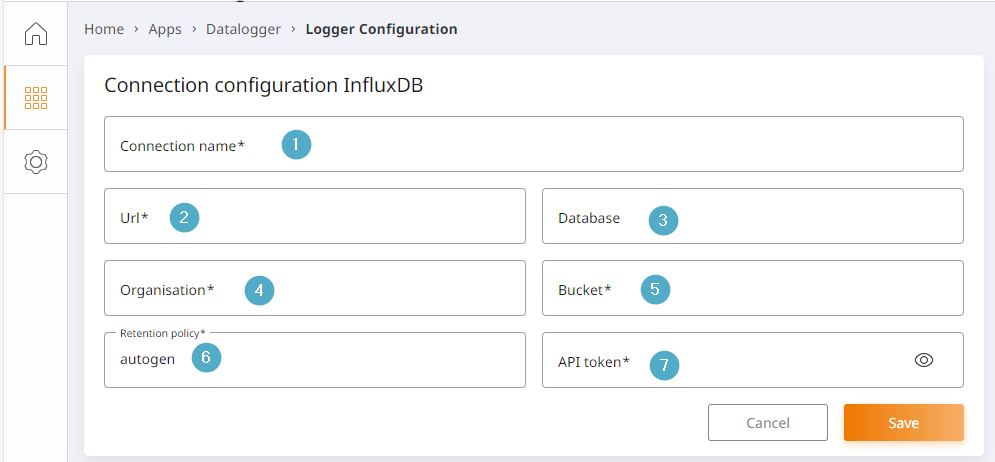
Connection name: Unique connection name, can be assigned individually.
URL: Hostname or IP incl. port to InfluxDB v2 e.g. 192.168.1.164:8080.
Database: Name of the database (optional).
Organization: Subdivision of the database.
Bucket: Bucket into which you want to log. The bucket must already have been created in the InfluxDB.
Retention policy: Name of the retention policy from InfluxDB. The default
autogenousselects the default setting of the database.API token: Access or authentication key of the InfluxDB. Must be copied from the InfluxDB during the creation of a client. Later access to the token is not possible.
Metadata and time series data
Metadata and time series data are stored together in Influx. The fields are as follows:
id: Technical key that can also uniquely address individual array fields.uuid: Technical key that uniquely identifies a tag down to array level.name: Name of the tag.arraySize: Size of the array. For simple tags, the value is 1.type: Data type of the tag. Numeric, Boolean or string.ioType: Communication behavior of the tag. Input, Output or BiDir.designerTagId: TagId in the PROCON-WEB Designer. Only available for HMI tags.local: Flag for local tags.system: Flag for system tags. 1 for system tags, 0 for project-specific tags.driver: Name of the driver via which the tag is connected.checksum: Check sum over the metadata.dateTime: Timestamp of the value as UNIX timestamp.logValue: Field for Booleans.numValue: Field for numerical values.stringValue: Field for textual values.
Configuration of a data logger
Data loggers are configured in the same way regardless of the type of target database.
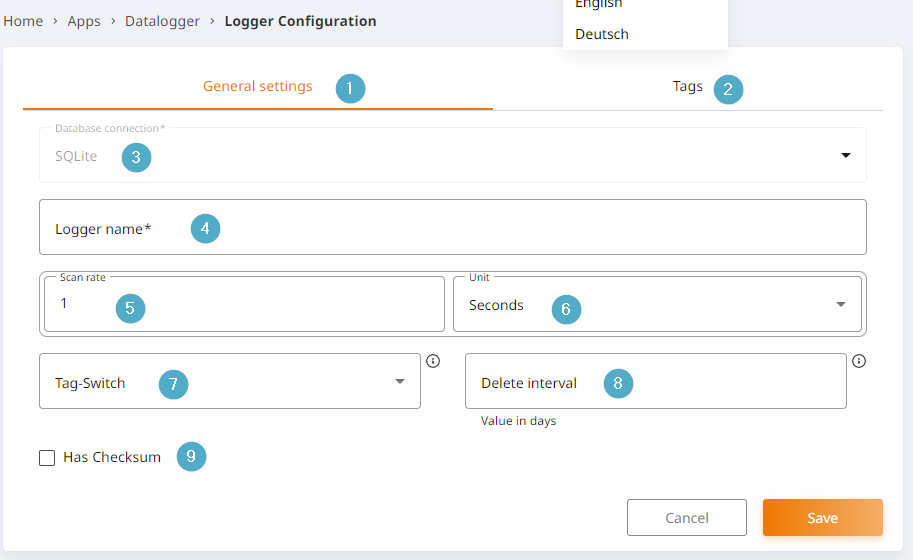
General settings: Tab for the general configuration of the data logger.
Tags: Tab for selecting the variables to be recorded.
Connection name: Freely selectable connection name. The connection name must be unique.
Logger name: Freely selectable name of a data logger. The logger name must be unique.
Scan rate: Numerical configuration of the storage cycle. The minimum is 200 milliseconds.
Unit: Select the unit for the storage cycle. Minutes, seconds or milliseconds can be selected.
Tag-Switch: Selection for a Boolean flag that acts as a switch. If the selected Boolean is 1, it is logged. If the Boolean is 0, it is not logged.
Delete interval: Interval in days after which the saved values are automatically deleted.
Has checksum: Inclusion of a checksum for the logged values in order to be able to trace their integrity. Is required for FDA conformity checks, for example.
The tags to be saved are selected in the Tags tab.
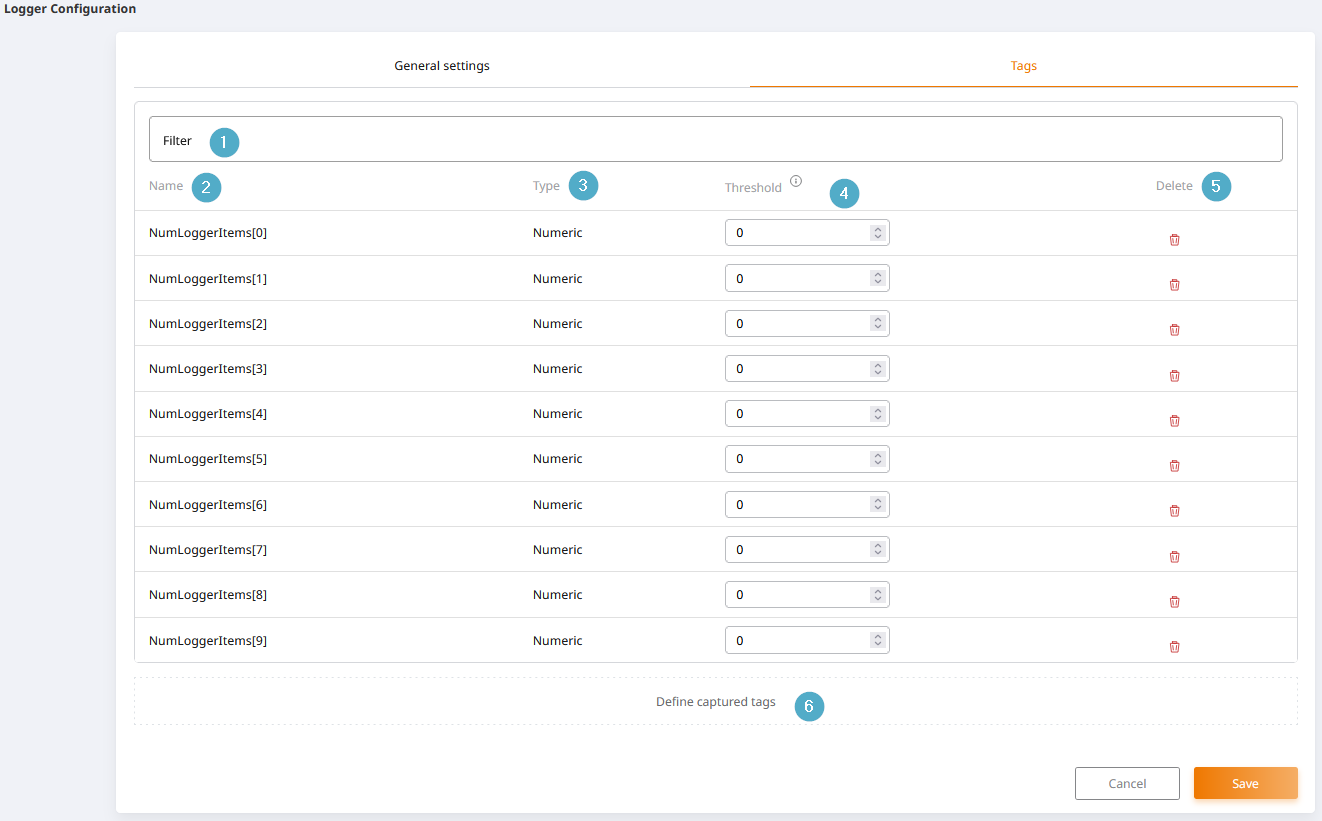
Filter: Enables filtering of the tag list according to the names of the tags.
Name: Name of the tag.
Type: Type of variable.
Threshold: Necessary, absolute value change compared to the previous value from which a data record is written.
Delete: Remove the tag from the data logger. The tag itself is not deleted.
Define captured tags: Configuration of the tags to be recorded via checkboxes.
Exporting logged data
Logged data can be exported. The entry point can be found on the data logger, see chapter Database connections.
The file name of the export file is assigned automatically according to the pattern [Datalogger name]_[Export period].
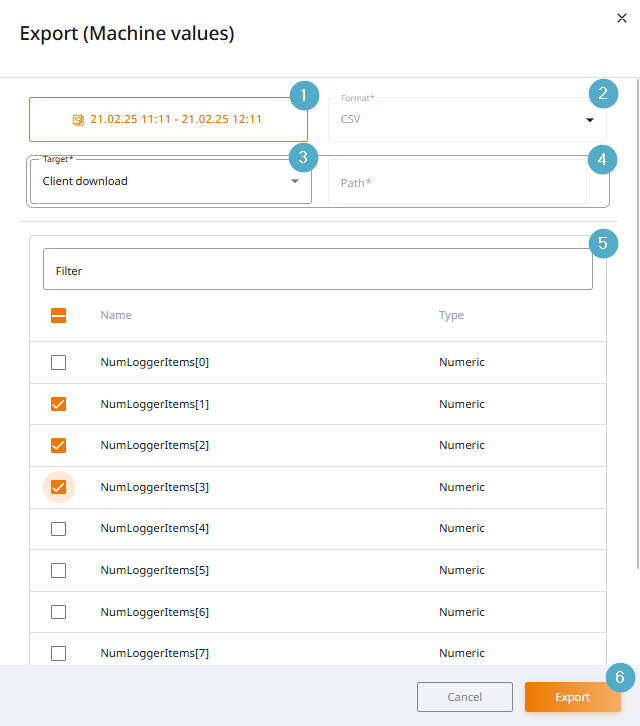
Time selection: The time selection allows you to filter the data for export by time.
Export format: Select the target format for the export. Currently only csv export is available.
Destination of the export: The export file can be exported either to the client or the host system. The download function of the browser is used for the client export.
Path selection: If you want to export to the host system, the export file is saved on the file system of the host system. Here you specify the path where the export file is to be saved. The file name is generated automatically.
Tag selection: The tag selection allows you to filter for specific tags for export. Only selected tags are included in the export.
Export button: The export is triggered immediately after clicking the button.