PROCON-Connect
Overview
PROCON-Connect is a powerful software tool for coupling with various measuring devices, control systems and automation systems. Recorded data can be pre-processed and sent to other analysing systems via MQTT client. Open interfaces round off the connectivity portfolio.
Process connection
With PROCON-Connect, you can access process data via a variety of drivers such as Modbus, OPC-UA, Codesys or Allen-Bradley and integrate it seamlessly into your infrastructure.
Cloud communication (MQTT)
In addition to the extensive connection options, PROCON-Connect offers an integrated MQTT client that allows you to send data to or receive data from the cloud. This functionality supports you in easily connecting to IIoT (Industrial Internet of Things) environments and helps you to transfer your data securely and efficiently to the cloud.
Seamless integration with other IIoT products from Weidmüller Software, such as ResMa, is already in place, offering you a seamless transition from data collection to the analysis and optimisation of your energy flows and processes.
Data preprocessing
Another highlight of PROCON-Connect is the ability to flexibly save the recorded process data. You can store the data locally in an SQLite database or integrate it into an external InfluxDB v2. This enables secure, structured and scalable data storage for later analysis or further processing.
APIs
PROCON-Connect has open and well-documented interfaces to make its use as flexible as possible.
Security
Warning
By default, no communication channels are open in PROCON-Connect, ensuring that the software complies with the requirements of various standards, such as the Cyber Resilience Act (CRA).
Fieldbus protocols such as Modbus and Allen-Bradley do not have built-in security mechanisms, so using them without additional security measures makes it impossible to ensure compliance with CRA or NIS 2.
If you use communication protocols or mechanisms that do not themselves provide the necessary security measures, these must be supplemented with administrative and organizational measures.
For more information, please refer to the Weidmüller Security Guideline.
Installation
PROCON-Connect runs under Windows, Linux and u-OS. The installation varies greatly between the operating systems, as different technologies are used.
Installation environments
PROCON-Connect runs under Windows, Linux and Weidmüller’s u-OS operating system.
PROCON-Connect is installed as a service under Windows.
Under Linux, PROCON-Connect is delivered as a Docker container.
PROCON-Connect is available as an app for u-OS.
Supported CPU architectures
ARM32
ARM64
AMD64
Installation under Windows
You need administrator rights for the installation. The installation process itself can be started by launching the setup file. The setup file is of file type .msi and opens a dialogue that guides you through the installation steps.
After installation, you can access the PROCON-Connect web interface via a browser using port 18443. For access from the host system, you can use https://localhost:18443, for example. Instead of localhost you can also use the IP address of a device that is accessible in the network.
For security reasons, you should always change the default password after logging in for the first time. Keep your password in a safe place. The system can no longer be accessed without a password.
Installation under u-OS
Installation under u-OS is carried out via the u-OS app store. Download the PROCON-Connect app there to install it on the u-OS device.
You will then find the app in the app overview of your u-OS device and can access the PROCON-Connect web interface.
For security reasons, you should always change the default password after logging in for the first time. Keep your password in a safe place. The system can no longer be accessed without a password.
Installation under Linux
The installation is based on Docker Compose. Docker Compose is used to start applications that require several containers to function via a YAML file.
First go to https://hub.docker.com/r/wmgti/procon-connect. Place the mouse over the code field of the Docker Compose file to display the Copy button and copy the content to the clipboard.
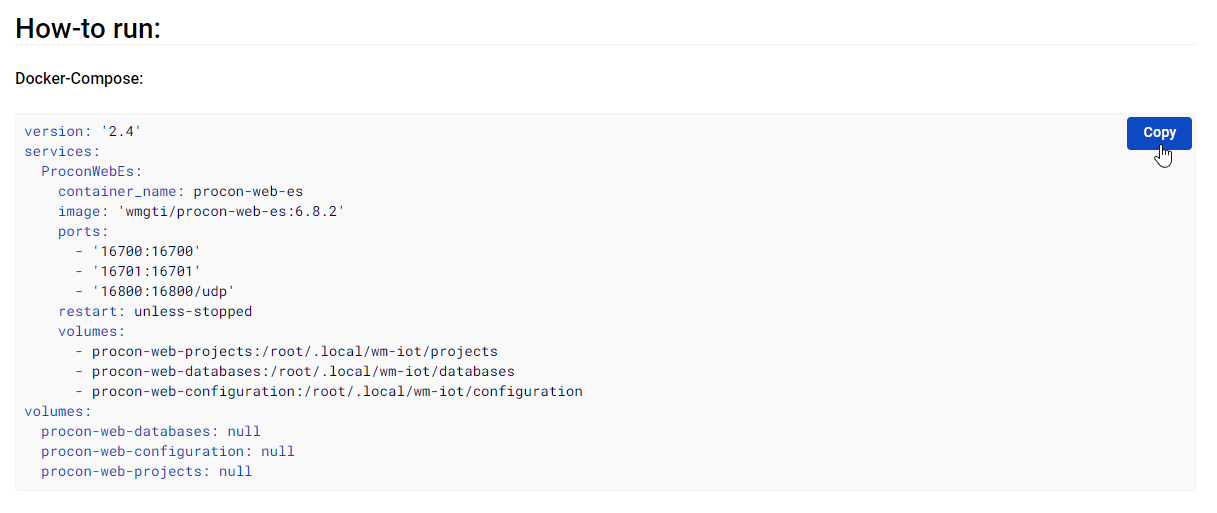
Paste the copied content into a file with the corresponding name, e.g. by executing nano procon-connect-compose.yml.
1nano procon-connect-compose.yml
Make sure that you save this file in a location where you can find it again if you want to make changes to it, e.g. update the PROCON-Connect image version.
Use docker compose -f procon-connect-compose.yml up -d to deploy a Docker container for PROCON-Connect.
The -f option is used to pass the path and name of the compose file, the -d option tells Compose to run the container in the background. Otherwise it would keep the command in the foreground and stop the container when you exit it. up is the actual command for Docker Compose to start the container.
1docker compose -f procon-connect-compose.yml up -d
Use docker compose ls and docker ps -a if you want to check the status of the container.
1docker compose ls
1docker ps -a
After deployment, you can access the PROCON-Connect web interface via a browser using port 18443. For access from the host system, you can use https://localhost:18443, for example. Instead of localhost you can also use the IP address of a device that is accessible in the network.
For security reasons, you should always change the default password after logging in for the first time. Keep your password in a safe place. The system can no longer be accessed without a password.