Alerts & Notifications
Overview
Rule-based alerts can be generated in PROCON-Connect. Pending alerts are displayed in the Active alerts overview.
As soon as their trigger condition is no longer met or they have been acknowledged – depending on the configuration – they are moved to the Alert history.
When alerts are triggered, Actions can be initiated. Actions may include notifications such as sending emails or text messages. Further actions, such as starting or stopping data loggers, will be added in future versions.
Notification recipients can be specified directly within the action or managed and grouped centrally for reuse in the Recipient section.
The notification channels – SMTP, email via Twilio SendGrid or SMS via Twilio – can be configured in the Settings.
Alert configurations
This page provides an overview of the alarm configurations and alarm groups in the system and offers access points for editing them. Alarm configurations and alarm groups are displayed in two separate tabs.
Alerts Tab
This tab displays the existing alarm configurations in PROCON-Connect.
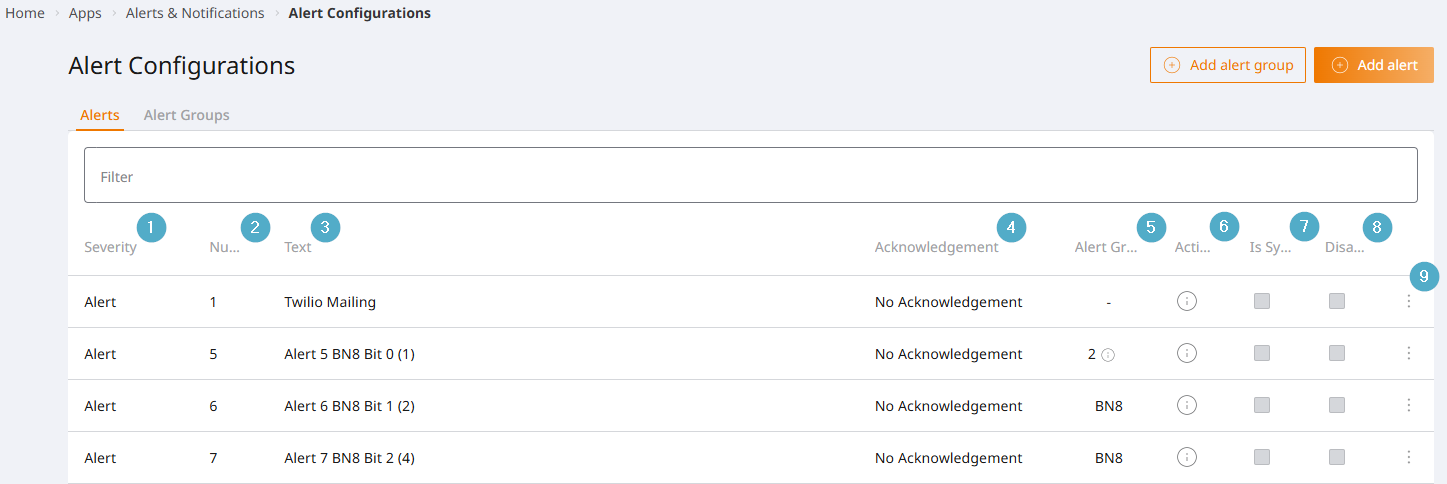
Severity: The severity level allows alarms to be categorised. Severity levels are
Alert,Warning,Info. Mandatory field.Number: Unique alarm number. Acts as a technical key for the alarm configuration and its alarm objects. Mandatory field.
Text: A brief description of the alarm. Mandatory field.
Acknowledgement: Selection of the acknowledgement logic. Determines when a triggered alarm is cleared. The default is
No acknowledgement.Acknowledgement
Description
No acknowledgement
Alert ist cleared when the trigger condition is no longer met.
Acknowledgement and trigger gone
Alert ist cleared when the trigger condition is no longer met and the alarm has been acknowledged.
Acknowledgement only
Alert is cleared once it has been acknowledged, even if the trigger condition is still met.
Acknowledgement and comment
Alert is cleared once it has been acknowledged, even if the trigger condition is still met. An acknowledgement comment must be entered.
Alarm groups: A list of the alarm groups in which the alarm configuration is located. There is no limit to the number of alarm group assignments.
Actions: A list of the actions that are triggered when the alarm is activated.
Is system alarm: A Boolean flag indicating whether this is a system alarm. System alarms are predefined and cannot be edited or deleted.
Inactive: Indicates whether the alarm configuration has been disabled via a linked Boolean tag.
Options menu: The starting point for editing and deleting an alarm configuration.
Configure the alarm
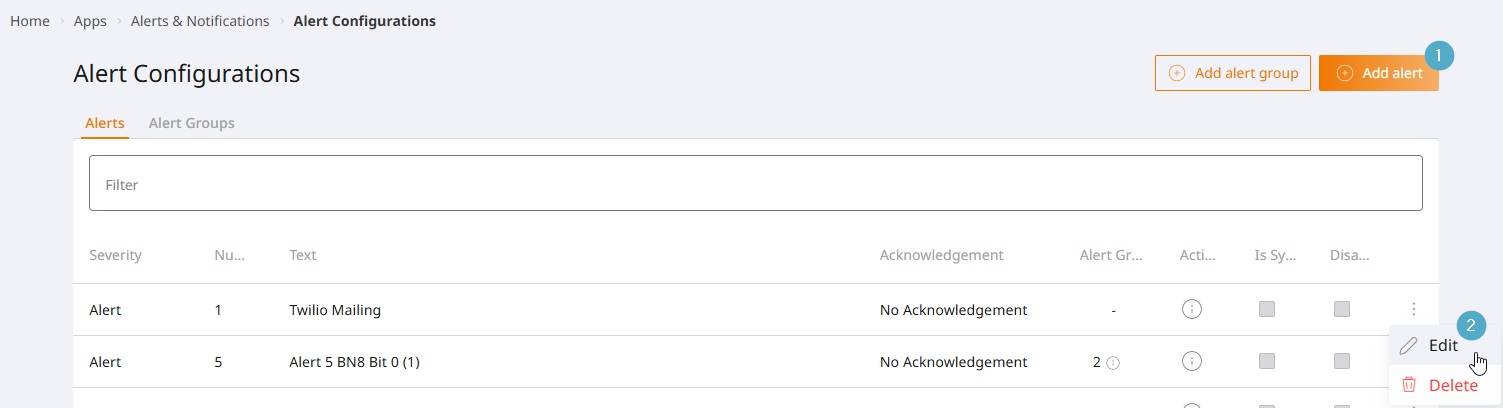
You can add an alarm using the Add alert button (1) and edit it via the Options menu (2).
The configuration is divided into three tabs.
Tab Alert Tab: Definition of the alarm object. Mandatory.
Tab Trigger tab: Definition of the trigger condition(s). Mandatory.
Tab Actions Tab: Definition of the actions to be triggered when an alarm is raised. This step is optional.
Alert Tab
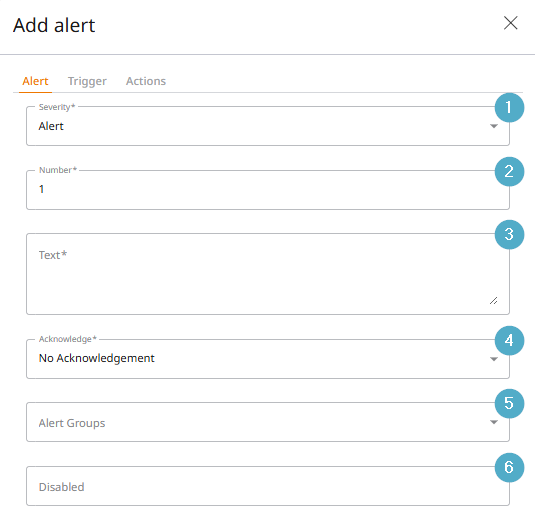
Severity: The severity level allows alarms to be categorised. Severity levels are
Alert,Warning,Info. Mandatory field.Number: Unique alarm number. Acts as a technical key for the alarm configuration and its alarm objects. Mandatory field.
Text: A brief description of the alarm. Mandatory field.
Acknowledgement: Selection of the acknowledgement logic. Determines when a triggered alarm is cleared. The default is
No acknowledgement.Acknowledgement
Description
No acknowledgement
Alert ist cleared when the trigger condition is no longer met.
Acknowledgement and trigger gone
Alert ist cleared when the trigger condition is no longer met and the alarm has been acknowledged.
Acknowledgement only
Alert is cleared once it has been acknowledged, even if the trigger condition is still met.
Acknowledgement and comment
Alert is cleared once it has been acknowledged, even if the trigger condition is still met. An acknowledgement comment must be entered.
Alarm groups: Option to assign to existing alarm groups. There is no limit to the number of alarm group assignments.
Inactive: A Boolean tag can be selected. As long as the tag is set to
true, the alarm is set to inactive. Inactive alarms are not triggered, even if their trigger condition is met.
Trigger tab
Several triggers can be defined for an alarm. All triggers are linked by a logical and. This means that all triggers must be met simultaneously for the alarm to be triggered.
Click the Add trigger button to add a new trigger.
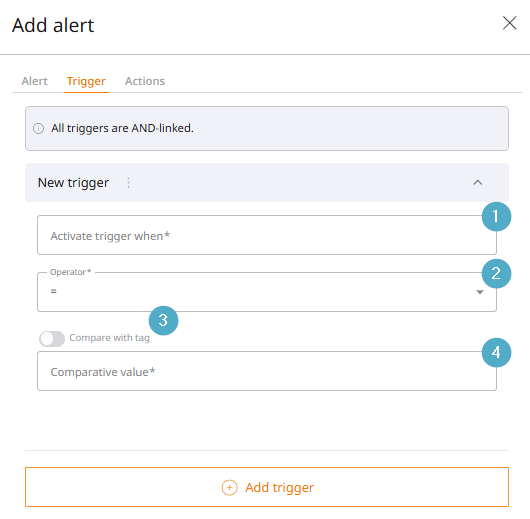
Activate trigger when: Select a tag whose value is to be used to trigger the alarm.
Operator: Select a mathematical or logical operator. The selection is automatically adjusted based on the data type of the previously selected tag.
Compare with tag: A toggle switch to specify whether the previously selected tag should be compared with a constant or another tag.
Comparison value: Enter a constant or select a comparison tag. The selection depends on the position of the
Compare with tagswitch.
Actions Tab
Several actions can be defined for an alarm. All actions are triggered when the alarm is activated.
Click the Add action button to open the action selection. The individual configurations are described in more detail in the Actions section.
Alert Groups Tab
Name: Name of the alarm group. Mandatory field.
Alarms: Shows how many and which alarms are assigned to the alarm group.
Options menu: The starting point for editing and deleting an alarm group.
Configure the alarm group
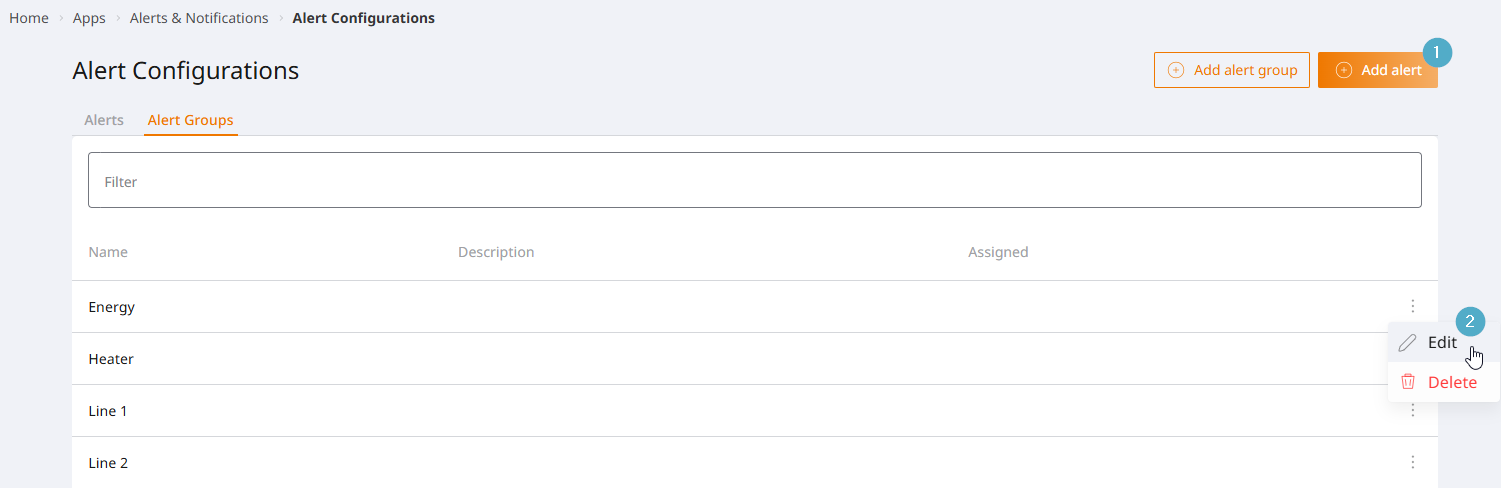
You can add an alarm group using the Add alarm Group button (1) and edit it via the Options menu (2).
Active alerts
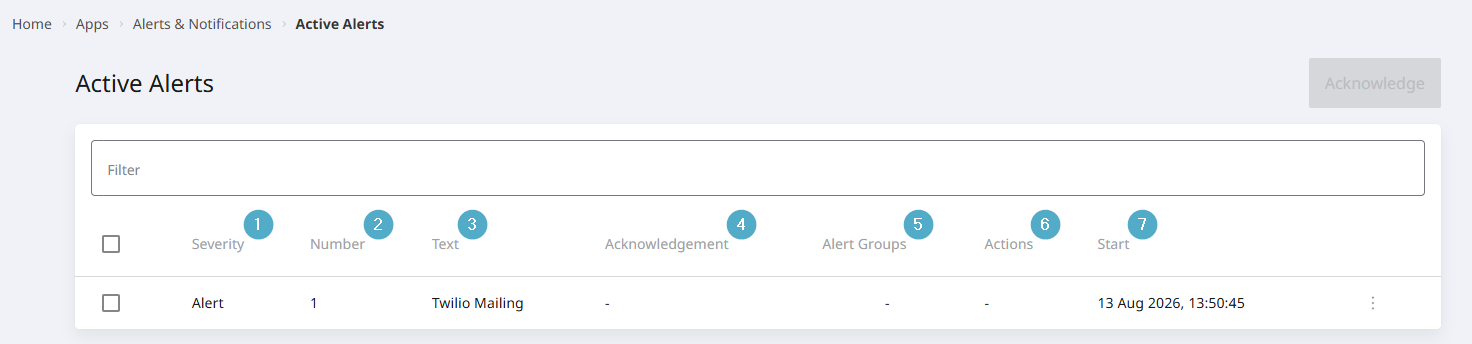
Severity: The severity level allows alarms to be categorised. Severity levels are
Alarm,Warning,Info.Number: Unique alarm number. Serves as a technical key for the alarm configuration and its alarm objects.
Text: A short description of the alarm.
Acknowledgement: Displays the alarm acknowledgement settings.
Alarm groups: A list of the alarm groups in which the alarm configuration is located.
Actions: A list of the actions configured for the alarm.
Start: The timestamp of the alarm object’s creation.
Acknowledging alarms
Alarms requiring acknowledgement remain in the overview of active alarms until they have been acknowledged. The fact that the trigger condition has ceased to apply is not sufficient to move the alarm to the alarm history.
Acknowledge alarms requiring acknowledgement
Select the alarms that require acknowledgement in the overview of active alarms using the tick box in the first column.
Click the
Acknowledgebutton.A notification indicates whether the acknowledgement was successful.
Once the alarms have been successfully acknowledged, they are removed from the overview of active alarms and moved to the alarm history.
Acknowledge alarms requiring a comment
Select the alarms that require acknowledgement in the overview of active alarms using the tick box in the first column.
Click the
Acknowledgebutton.The comments dialogue box opens. All alarms requiring a comment are listed in the upper section.
One or more alarms requiring a comment must be selected using the tick box.
A comment must be entered in the comment field. The comment will be applied to the checked alarms.
You can then tick the checkboxes to add different comments to further alerts.
The
Savebutton is enabled and can be clicked. All alarms with associated comments are acknowledged and commented on.A notification indicates whether the acknowledgement was successful.
Once the alarms have been successfully acknowledged, they are removed from the overview of active alarms and moved to the alarm history.
Alert history
The alarm history displays past and acknowledged alarms.
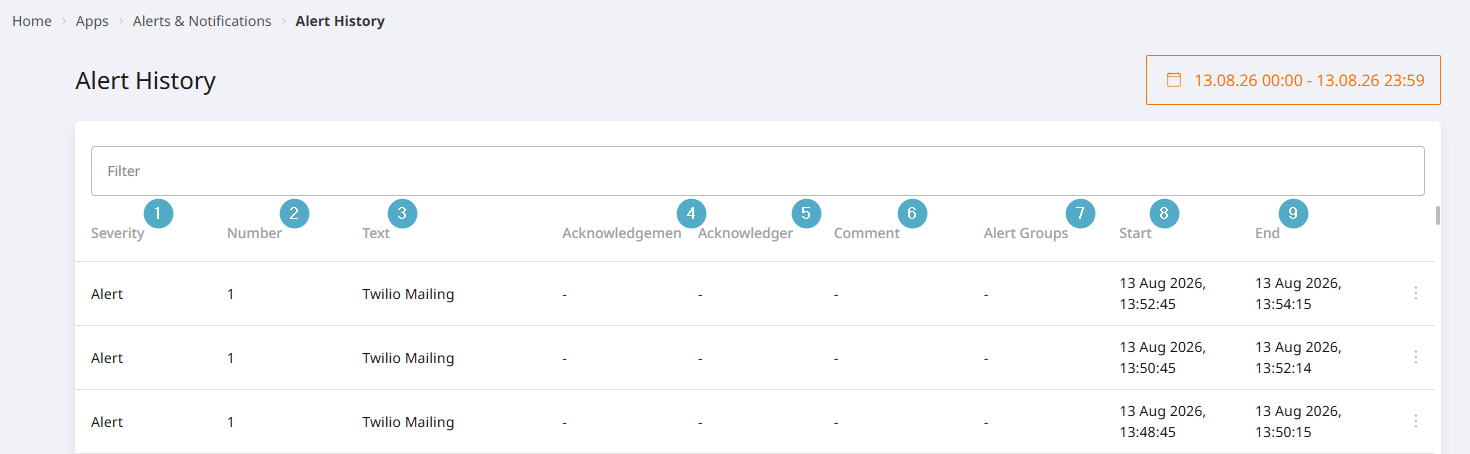
Severity: The severity level allows alarms to be categorised. Severity levels are
Alarm,Warning,Info.Number: Unique alarm number. Serves as a technical key for the alarm configuration and its alarm objects.
Text: A short description of the alarm.
Acknowledgement: Time of acknowledgement.
Sign-off user: Name of the person signing off. When using a PROCON-Connect user account, the login name is used. When using LDAP, the
display name attributeis used.Comment: Display of the acknowledgement comment for alarms requiring a comment.
Alarm groups: A list of the alarm groups in which the alarm configuration is located.
Start: The timestamp of the alarm object’s creation. At this point in time, all trigger conditions had been met.
End: The timestamp indicates when the trigger condition was first no longer met. For alarms requiring acknowledgement, this usually differs from the acknowledgement timestamp.
Recipient
This page provides an overview of recipients and recipient groups and offers access points for editing them. Recipients and groups are displayed in two separate tabs.
Warning
The user is solely responsible for complying with statutory regulations relating to the protection of personal data within the relevant scope of application.
Recipients tab
This tab displays the existing recipients.
Name: A name that can be chosen freely. This is displayed in recipient selections.
Email: The recipient’s email address. Used for inclusion in email-based notification actions.
Telephone number: The recipient’s telephone number. Used for inclusion in relevant notification actions.
Options menu: The starting point for editing or deleting existing recipients.
Configure recipient
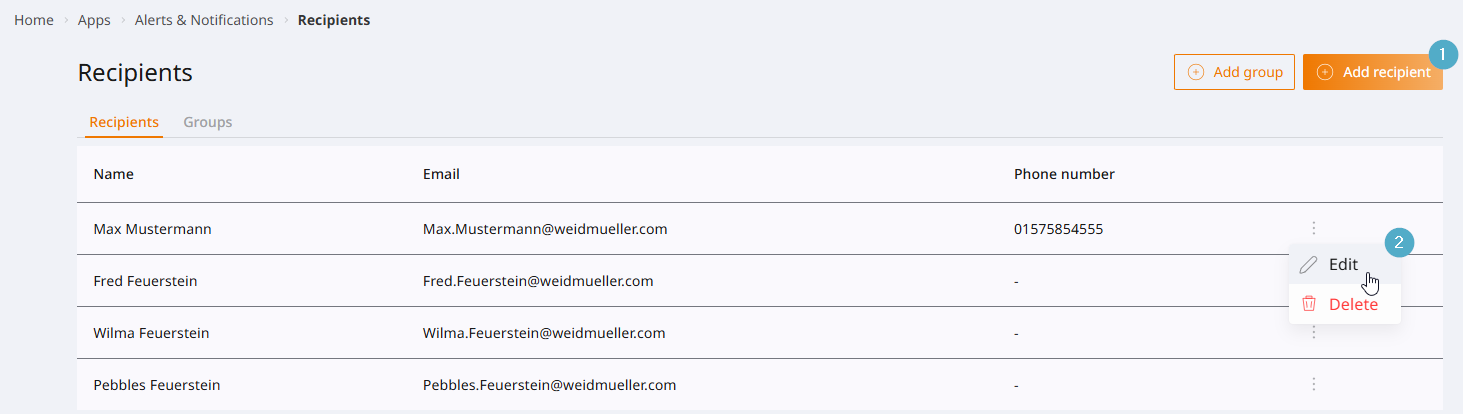
You can add a recipient explicitly using the Add recipient button (1) and edit it via the Options menu (2).
Recipients are also implicitly added to and removed from the overview when their email or telephone details are entered directly into a notification action without having been explicitly created as recipients beforehand. Such entries can be identified by the fact that they are given the name AUTOGEN. They can be renamed at any time.
This mechanism allows the contact details used to be checked centrally in the recipient overview.
Groups Tab
This tab displays the existing recipient groups.
Name: A name that can be chosen freely. This is displayed in recipient selections.
Members: Names of the recipients who are part of the group.
Options menu: The starting point for editing or deleting existing groups.
Configuring groups
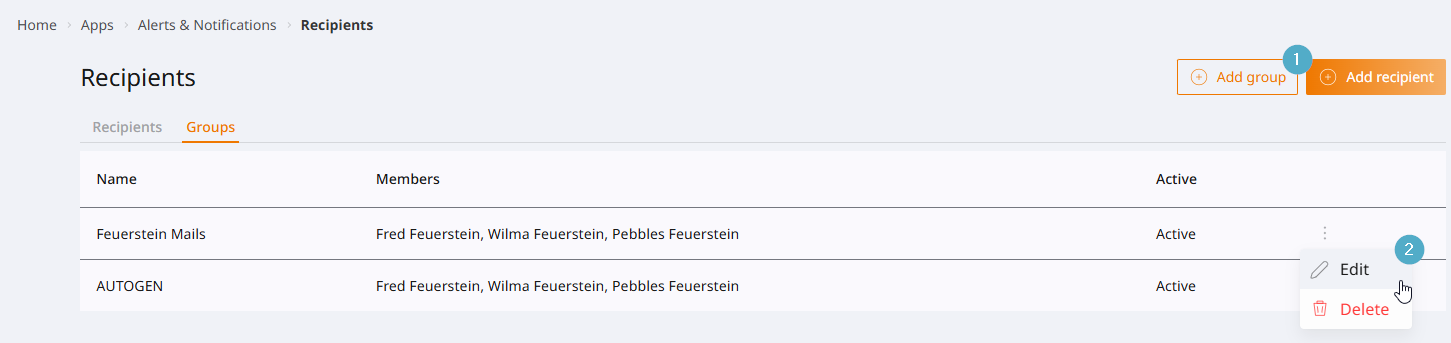
You can add a group explicitly using the Add Group button (1) and edit it via the Options menu (2).
Groups are also implicitly added to and removed from the overview when their email or telephone details are entered directly into a notification action without having first been explicitly grouped together. Such entries can be identified by the fact that they are given the name AUTOGEN. They can be renamed at any time.
This mechanism allows the contact details used to be checked centrally in the recipient overview.
Settings
Configuration options for sending emails via SMTP or Twilio SendGrid, or SMS via Twilio.
Email Tab
Emails can be sent either via an SMTP server or via Twilio SendGrid.
When email campaigns are initiated, the current selection is used for sending them.
To change your selection, select either SMTP or Twilio SendGrid using the radio button and click Save.
SMTP
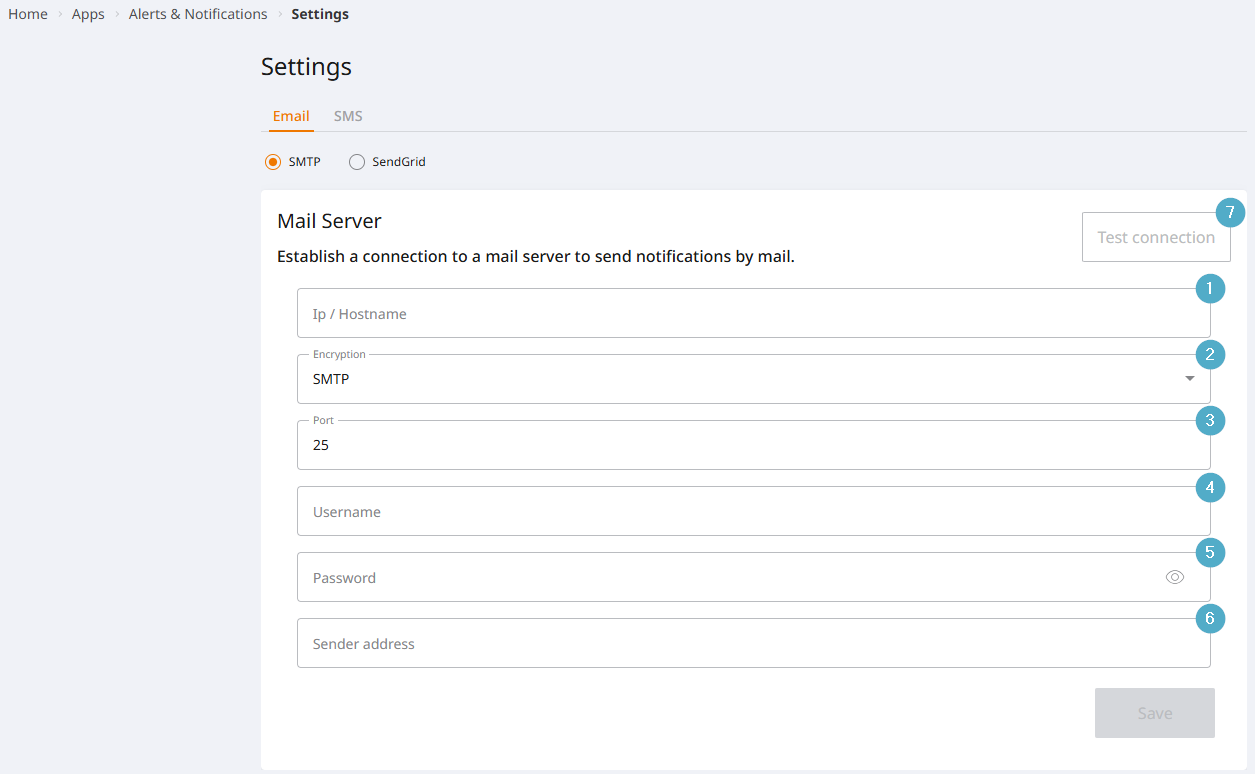
IP/Hostname: The IP address or hostname of the SMTP server. Example:
smtp.office365.comEncryption: Select the encryption method. SMTP servers used in production should always communicate using encryption. Options:
SMTP,SMTPS,STARTTLS.Port: Port of the SMTP server.
Username: Username for logging in to the SMTP server.
Password: The correct password for the username used to log in to the SMTP server.
Sender address: The email address displayed to recipients.
Test connection: Opens the dialogue box for sending a test message. If an error occurs, a notification and the Event log will provide information about the cause of the error.
Twilio SendGrid
Twilio SendGrid is a cloud-based email service. A Twilio SendGrid account is required to use the service. Fees may apply. The terms of use are agreed between the user and Twilio.
SMS Tab
SMS messages can be sent via Twilio.
Twilio is a cloud-based service. A Twilio account is required to use it. Fees may apply. The terms of use are agreed between the user and Twilio.
Actions
Actions are triggered when an alarm is raised. They can be used to send notifications or to automate processes.
The range of available features will be expanded regularly in future releases.
Send an email
To use this feature, you need to set up the correct configuration for sending emails; see Email Tab.
Recipient: Clicking in the recipient field displays the available mailing lists and individual recipients. You can select one or more entries by clicking on them. Alternatively, you can type in email addresses directly and add them by pressing the
Enterkey.Subject: Email subject.
Text: Email text. The default is
{AlertText}. This variable allows the text of the alert to be included in the email text.
Sending SMS
To use this feature, you need to set up the correct configuration for sending SMS messages; see SMS Tab.
Recipient: Clicking in the recipient field displays the available SMS groups and individual recipients. You can select one or more entries by clicking on them. Alternatively, you can type in phone numbers directly and add them by pressing the
Enterkey.Text: SMS text. The default is
{AlertText}. This variable allows the text of the alert to be included in the SMS text.